Table of Contents
Introduction
DMS is a tool designed to assist in the management of hardware refresh projects, although it could easily be used to assist any project management team manage other kinds of deliverables. By storing all key project data centrally and providing interfaces relevant to each team member and their responsibilities, DMS can ensure the project team can carry out their roles efficiently with access to secure up to date project information.
DMS also provides a web portal interface to the customer end user which can optionally assist in ‘surveying’ the end user regarding user, computer and application information relevant to the deployment as well as allowing ‘self-service’ scheduling. This user web portal and the email communication functionality within DMS is supported in local language to support global programmes.
Terms and Descriptions for Reference
| Term | Description |
|---|---|
| DMS | Deployment Management Service. |
| DMS Web Portal | Top level URL to instance. |
| DMS Console | Win32 application. |
| DMS Console Setup | Setup within DMS Console. |
| Schedule Group | A defined group of deployments which is the control point for all aspects of managing said deployments. |
| OU | Organisational Unit. |
| Deployment Window | The date range between which deployments are available. |
| T0 | The end of pre-deployment preparation and the first day of deployment for a Schedule Group. |
| Task | A defined tollgate task for a Schedule Group. |
| Amber Days | The number of days prior to a task deadline that it should show as Amber status in the DMS Console Schedule Group tracker. |
| DTL | Deployment Team Leader. |
| T-Schedule | This is the timeline of tollgate tasks for the management of a deployment project. |
| T-Schedule Tracker | This is the graphical management interface with the DMS Console which shows the T-Schedule and it's tasks for a specific Schedule Group. |
Tasks
Tasks are the project tasks to be managed by the PMO team through the lifecycle before and during the deployment of a Schedule Group. These run through a defined time line often referred to as a tollgate schedule or T-Schedule. The T dates for tasks represent the number if days or weeks (dependent on which is configured) prior to T0 the task should be completed by. T0 is the reference point for the first date of deployment for the Schedule Group.
To create tasks in the Tasks tab:
- Click on the New icon in the right hand toolbar or by right clicking and selecting New from the context menu.
- Enter a name for the task.
- Enter a T date (any number of tasks can have the same T date). N.B. Do not enter anything in the ‘end_date’ field at this time.
- Enter an Amber Days value if 7 is not appropriate. Setting the Amber Days to 0 will disable any RAG status on the task.
- Click Apply.
- Repeat until task list complete.
You can also import a list of tasks from a previous instance. Use the import button on the toolbar and select the task export file (XML). Use the export button on the toolbar to export your task information for use on other projects.
Creating a Schedule Group
Once you have a project structure and at least one Template Schedule Group you can start to create Schedule Groups. The structure does not need to be complete and you can continue to create new Template Schedule Groups.
To create a Schedule Group using a Template Schedule Group you must first have the OU structure defined and the name of the OU you wish to convert. You can rename an OU however you cannot rename a Schedule Group.
- Select the OU you wish to convert
- Right click and select Convert
- Then select the Template Schedule Group you would like to use for the Schedule Group
- The OU is then converted to a Schedule Group and a different icon is used to signify the change.
Once the Schedule Group exists in the structure it can be managed in the DMS Console. The final configuration of the Schedule Group is done via the Schedule Group Properties window which is available once a Schedule Group is managed in the DMS Console. For more information on this see section 7 Managing Deployments.
A Site Survey is allocated within the project structure and can be sent to the contact assigned as the Primary Contact for that part of the structure.
Unlike the User survey the Site survey allows for various different types of data field to be presented on the survey as well as Section Headers, Section text and section breaks:
- Text - single line and multiple line
- Date
- Multiple Choice
- Yes/No
Asset Tracking
Asset Tracking is an option that is specified before an instance is commissioned. Whilst Asset Tracking has been referenced where appropriate in the rest of this document, this section deals explicitly with the features of Asset Tracking and the DMS Console. See section 9 Assets Portal for how to use the Assets Portal.
Asset tracking allows new and legacy computers to be tracked from their starting location to their final location during a project. By creating Asset Location OUs in the structure and creating asset transfer routes with permissions, chain of custody of any computer can be tracked and reported on.
The following sections assume that the initial background work of how the asset tracking structure will sit within the overall project structure with DMS has been designed and agreed.
Asset Locations
Creating Asset Location OUs is done using DMS Console in the same way as other structure OUs, see section 2.5 Structure. Wherever possible these Asset Locations should bear resemblance to physical locations rather than logical ones. Asset Locations can only be created within a structure OU and not beneath another Asset Location OU.
Once you have your Asset Location OUs defined you can then start to build up the Asset Transfer routes to be used and their security.
Asset Location Properties
The General tab of an Asset Location OU is the same as all OU types and the information is inherited within the structure.
The Asset Location tab allows you to set the Asset Location Type. For every aspect of Asset Tracking the default setting of Normal is required. The only time the setting should be changed to Global is when an Asset Location is to be used as a central build location. Changing the setting to Global will mean this location is visible in the Build Portal and computers in this Asset Location can be pre-assigned to deployments in the this interface and the Console.
The Asset Location tab also shows the users with permissions to this location and their send receive rights. See section 2.4 User Security for additional information regarding user security.
Asset Transfer Routes
Setting up Asset Transfer Routes allows assets to travel between two or more locations. Setting up AT Routes is done using the Asset Transfer tab in DMS Console Setup. To set up a new AT Route do the following:
- Select the Asset Transfer tab in DMS Console Setup.
- Click on the new icon in the menu bar located at the top right.
- Give the route a unique name.
- If the OU structure is not visible on the right hand side click on the structure icon in the menu bar.
- You can now use the structure to select the OUs you require in the route. Drag and drop the OUs into the left pane. OUs that are configured as Asset Locations are shown with a yellow icon whereas OUs that are not configured as Asset Locations are shown with a white icon and cannot be used.
- Once the locations are all shown in the left pane you can click on the structure icon to hide the structure pane again if necessary.
- Now right click on each location in turn and select connect and drag the arrow that appears to the location the route needs to connect to. Repeat as required to complete the route.
- Figure 4 below shows a route called European Shipping which allows assets to move from the European Goods Out to Goods In at the Southampton site via a shipping partner.
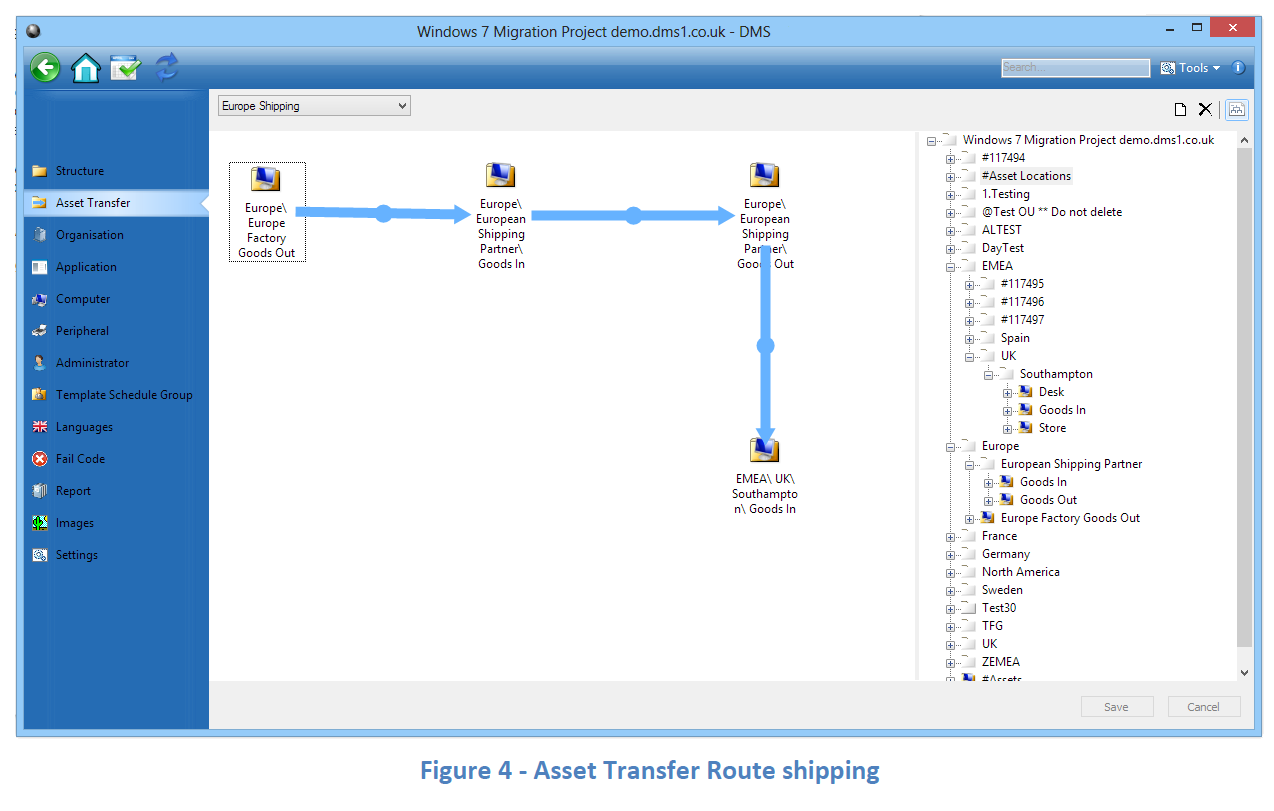
- In order to keep the number of routes defined efficient, any other locations that could receive assets from the European Factory Goods Out would be added to this route rather than creating one for each individual end point.
- Figure 5 below shows an AT Route used at a deployment site. This route allows assets to move between Goods In all the way through to Goods Out. This means new assets can be moved from Goods In through the deployment process to At Desk, and legacy computers can be moved from At Desk through the ARS process to Goods Out.
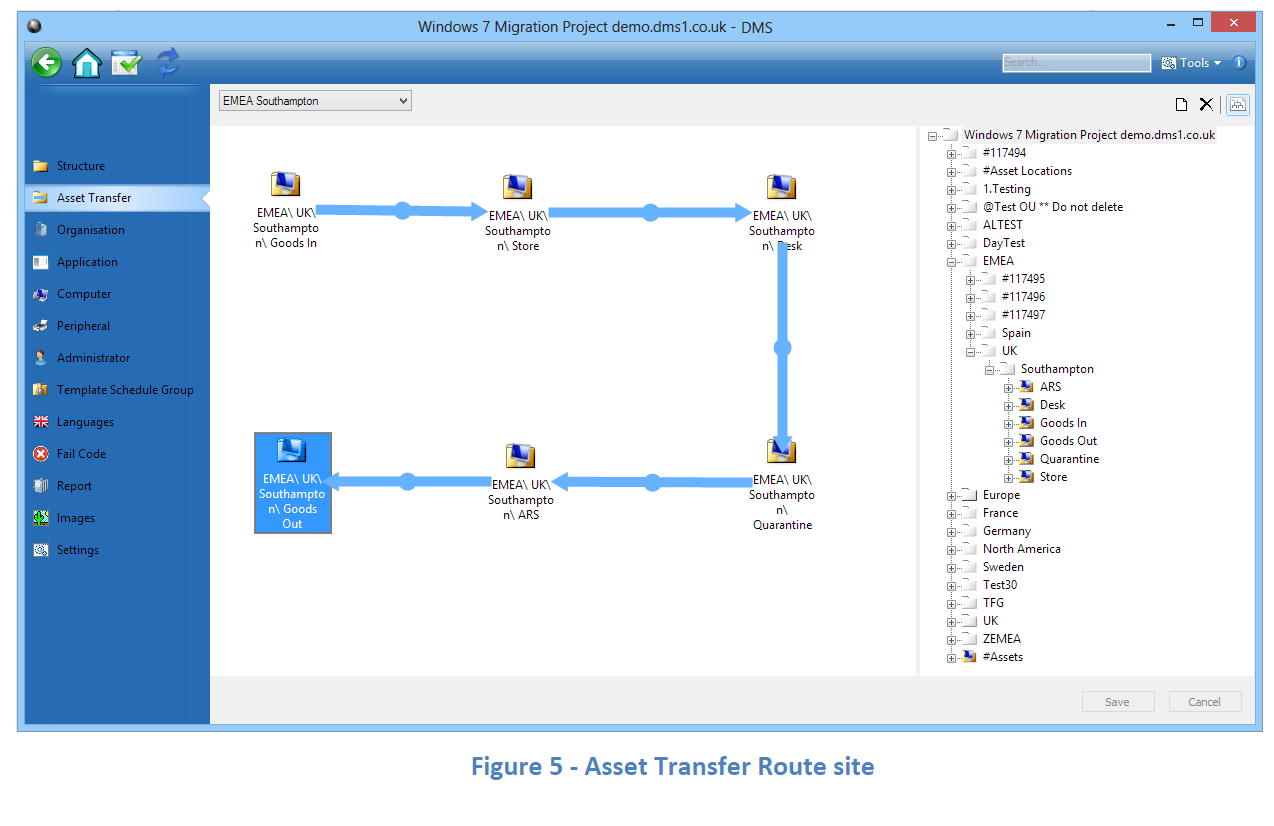
N.B. when deleting individual locations from a route, or complete routes you must first delete each individual blue path associated with the location(s).
Asset Tracking Access and Permissions
Once you have created your locations and routes you will need to assign access and permissions for users. The properties of a user in the Administrators tab in DMS Console Setup has an Asset Locations tab which lists the Asset Locations. Here you can then select which location the user can see and set whether they can send assets from, or receive assets at a location, or both.
If the user will be using any of the web based portals you will additionally need to set security permissions to the appropriate asset locations. Using the Security tab select the relevant OUs and assign Read and or Read/Write permissions. When you have a location you have receive access to you must assign read/write permissions for the locations that are sending to that location.
N.B. Security permissions are inherited within the structure.
You can also view asset tracking access from the properties of an OU using the Asset Tracking tab. This will list the users with access and which transfer rights they have. The same properties window can be opened for an OU within a route using the Asset Tracking tab in DMS Console Setup. See section 2.4 User Security for additional information regarding user security.
Asset Tracking for a Schedule Group
Whilst a Schedule Group is a logical location and not an Asset Location, it does have a bearing on asset movements as deployments are managed as records within a Schedule Group. The asset transfers directly related to a deployment take place automatically when a deployment is processed in the DTL Portal.
For these automatic asset transfers to take place Schedule Group routes must be set in the properties of a Schedule Group or OU structure. These automatic routes aid efficiency whilst ensuring that when a deployment is carried out the legacy and new assets will be automatically transferred to new locations as predefined in these Schedule Group properties.
| Properties | Description |
|---|---|
| Schedule Group Routes\Legacy Route | Select from the list of the defined Asset Routes where you want legacy assets to be moved from and to when the deployment occurs. |
| Schedule Group Routes\Deployed Route | Select from the list of the defined Asset Routes where you want new assets to be moved from and to when the deployment occurs. |
| Table 14 - Schedule Group properties Asset Tracking | |
Managing Asset Transfers in DMS Console
Managing the Asset Transfer process can be done from within DMS Console or using the Assets Portal; see section 9 Assets Portal.
Asset locations are added to DMS Console in the same way Schedule Groups are:
- Click on Add Asset Location.1)
- Select the Asset Location from the drop down list.
- Once selected click on the tick icon.
Figure 6 below shows a DMS Console with 3 asset locations. It shows that there are 280 assets in stock at Europe Factory Goods Out as well as 200 assets in stock at Goods In at the European Shipping Partner. Neither location has any inbound or outbound pending asset transfers.
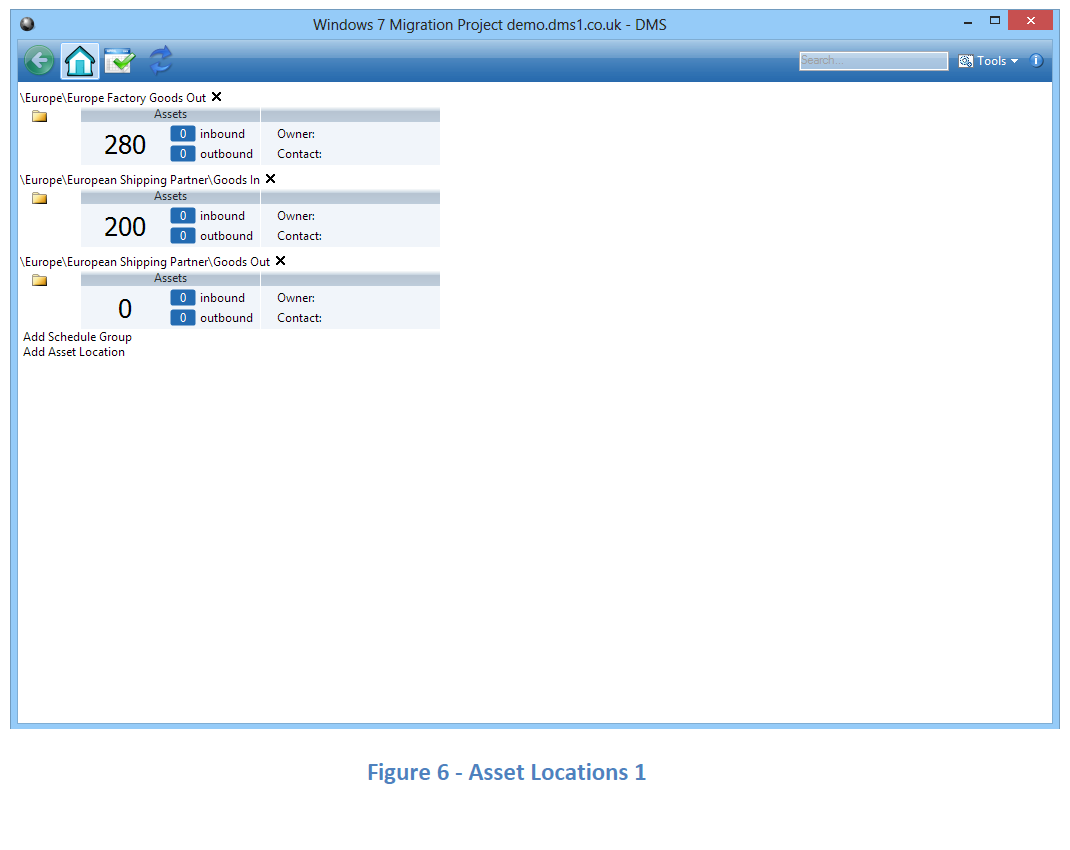
Figure 7 below illustrates that 106 assets are in transfer between Europe Factory Goods Out and the Goods In of the European Shipping Partner.
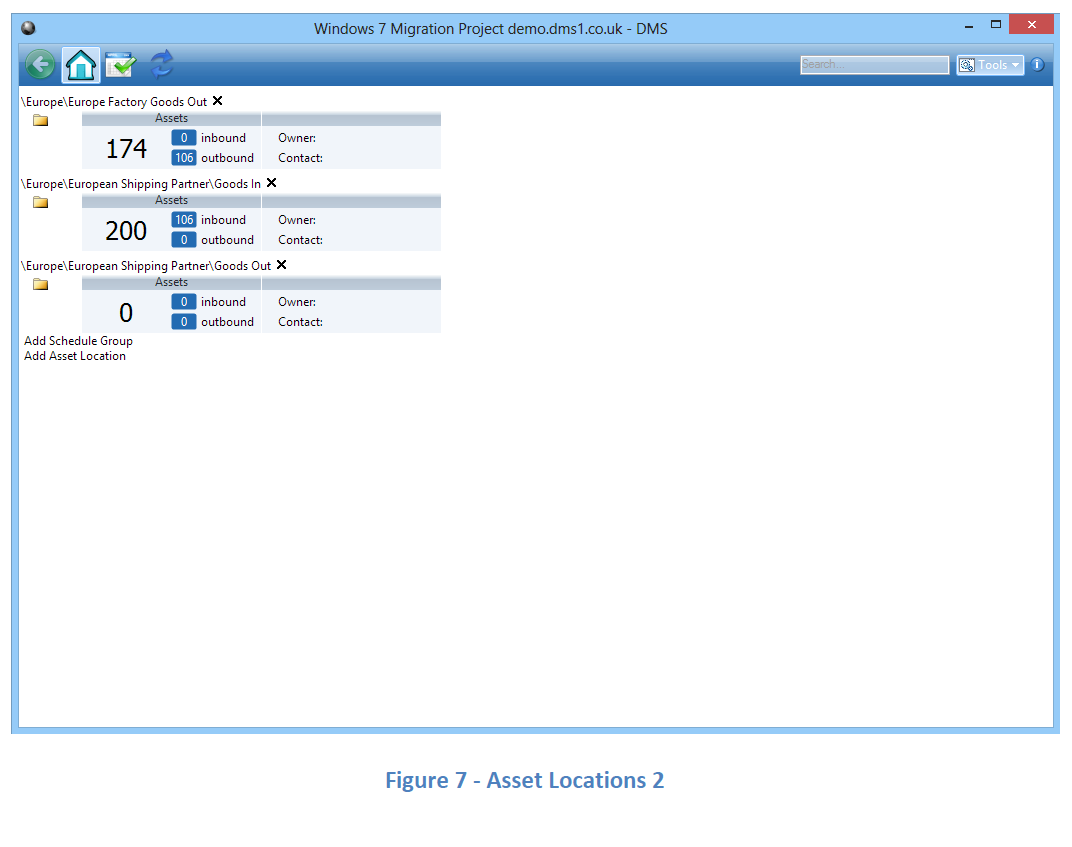
Asset Transfers
Inbound Asset Transfer
To accept an inbound asset transfer to an asset location that you manage:
- Click on the yellow folder in the Asset Location to load the Asset Location properties.
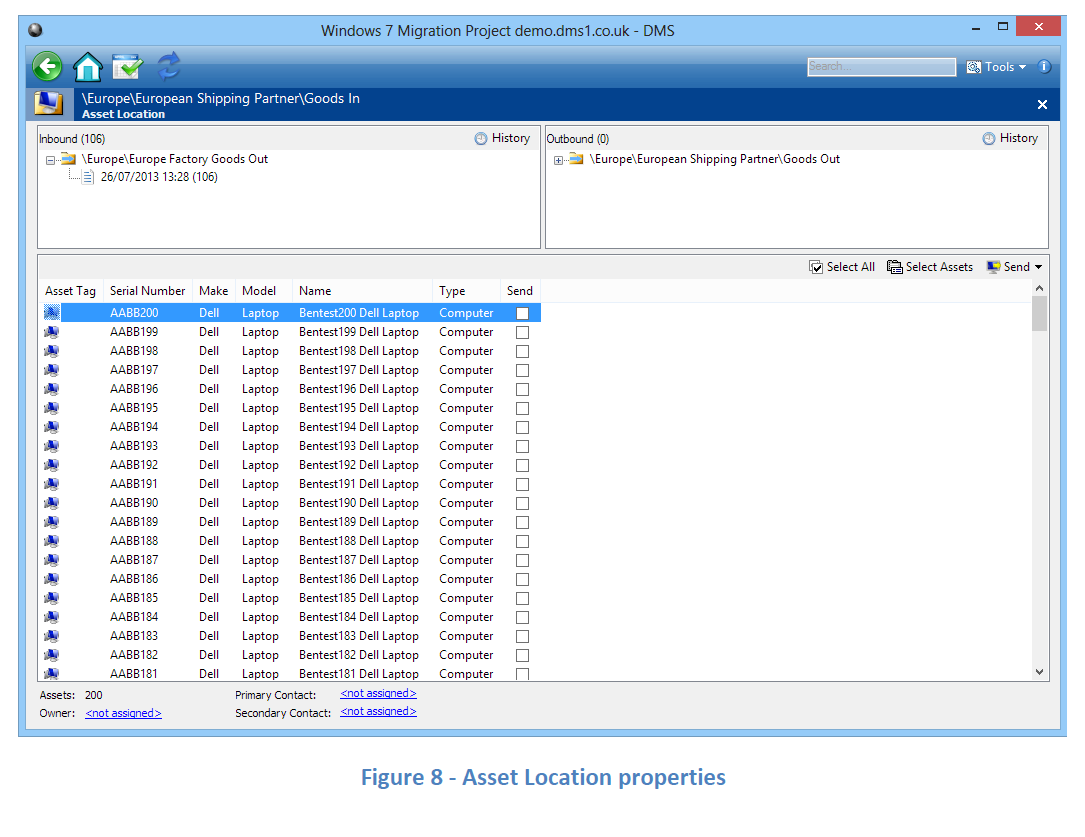
- You will now see a three pane window similar to the one in Figure 7 above. This shows 200 assets in stock at this location, 106 assets inbound and 0 assets outbound. We have already expanded the Inbound folder to show that the 106 Inbound assets are in one transfer.
- To accept the inbound transfer, double click on it in the top left pane.
- The Asset Transfer Record (ATR) will now load in the window.
- The ATR shows where the assets have come from and who sent them and when.
- You can now check the physical assets against the ATR and use the Accept and Reject columns to process the ATR. There is also a Notes button which can be used to record information against the ATR for future reference.
- Once everything is selected you can then press the Transfer button to process your end of the transfer.
Outbound Asset Transfer
To initiate an outbound asset transfer to another asset location:
- Click on the yellow folder in the Asset Location to load the Asset Location properties.
- We will use the same Asset Location from the section above however we now have 432 assets in stock and no inbound transfers pending. As the shipping partner we are now ready to move some assets to Goods Out ready to be transferred to their next location.
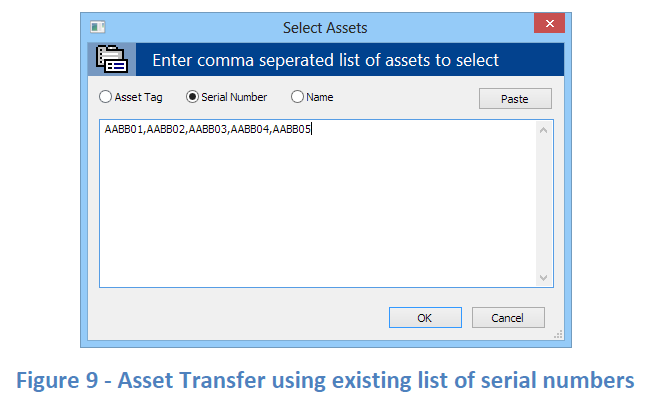
- There are two methods that can be used to select assets to be transferred. In the bottom pane you can use the ‘Send’ tick box next to each asset to add it to the list, or you can use the ‘Select Assets’ button on the toolbar above the bottom pane on the right. The ‘Select Assets’ feature allows a list of either Asset Tags, Serial Numbers or Computer names to be ‘pasted’ or typed in for automatic section. If you have a number of locations that this location has a route to you will need to select the location you are transferring to when you click on Send in the toolbar.
- You will receive a confirmation prompt which has the option to also automatically accept the transfer. This can speed up the process if you have permissions to both locations and manage both locations. When you press ‘Yes’ creating the ATR is complete and the stock moves to your Outbound pane and will also appear in the Inbound pane of the destination location to show them that a transfer to them is in progress.
Assets Portal
The Assets Portal has been designed for those users who need to participate in managing assets but do not have access to the DMS Console. Once a user has been granted access to the Assets Portal it will appear on their DMS Web Portal menu bar and as with all browser interfaces it is supported on the latest versions of Microsoft Internet Explorer, Firefox and Google Chrome.
The Asset Locations that are listed in this portal (as shown in Figure 10 below) directly correspond to the ones you have been granted access to in the Asset Locations tab of the User Properties. You must also have read write security permissions to the Asset Locations within the project structure in order to carry out any asset transfers.
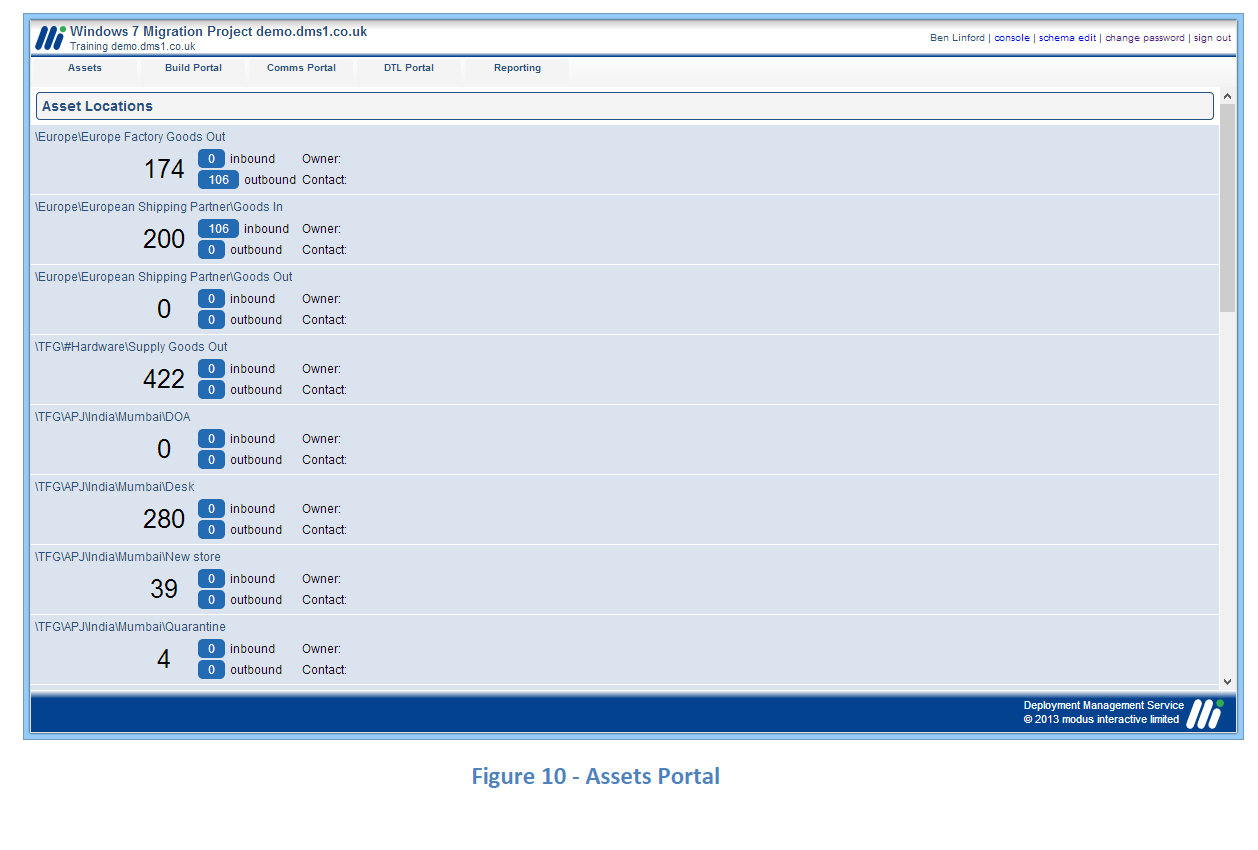
Clicking on the blue background of an Asset Location will reveal the options available:
- Inbound
- Outbound
- Inventory
Asset Transfers
Inbound Asset Transfer
accept an inbound asset transfer to an asset location that you manage:
- Click on Inbound to display a list of the possible locations that the user can receive Asset Transfers from and send to.
- Select the location the transfer is coming from to see a list of ATRs.
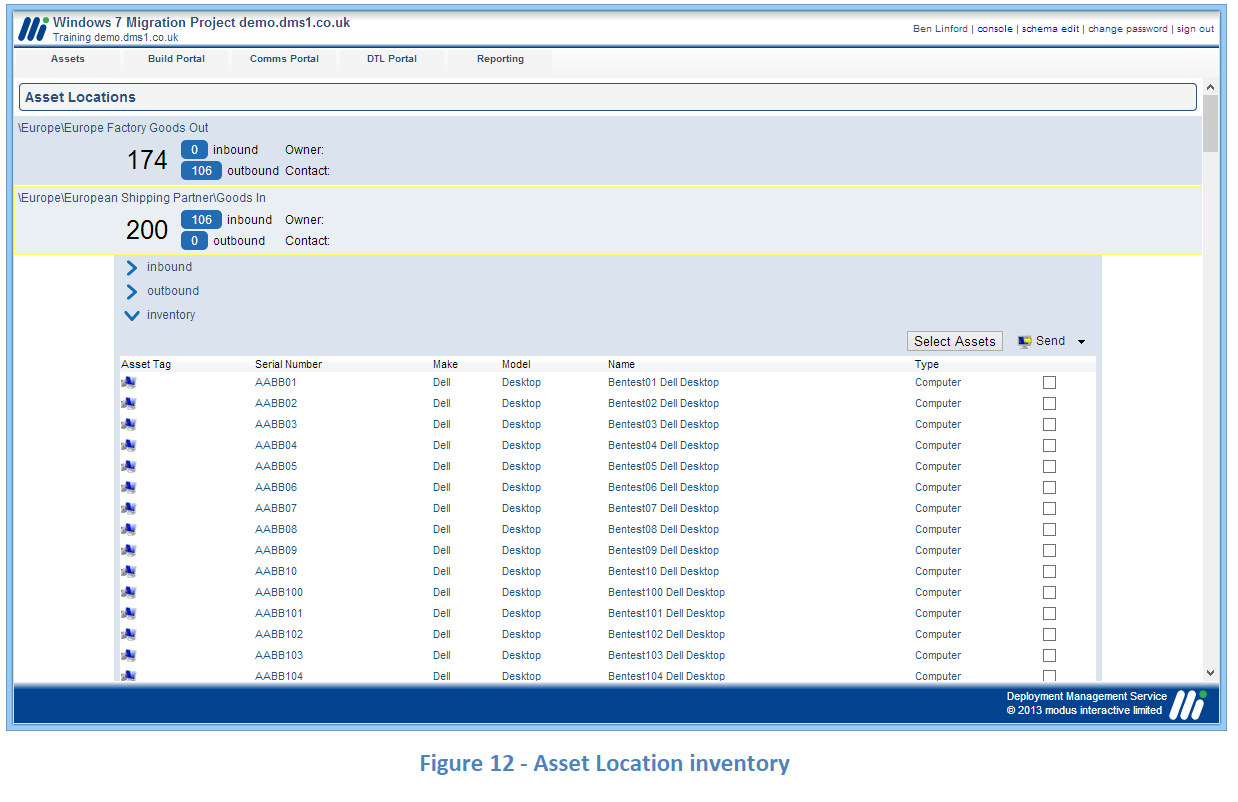
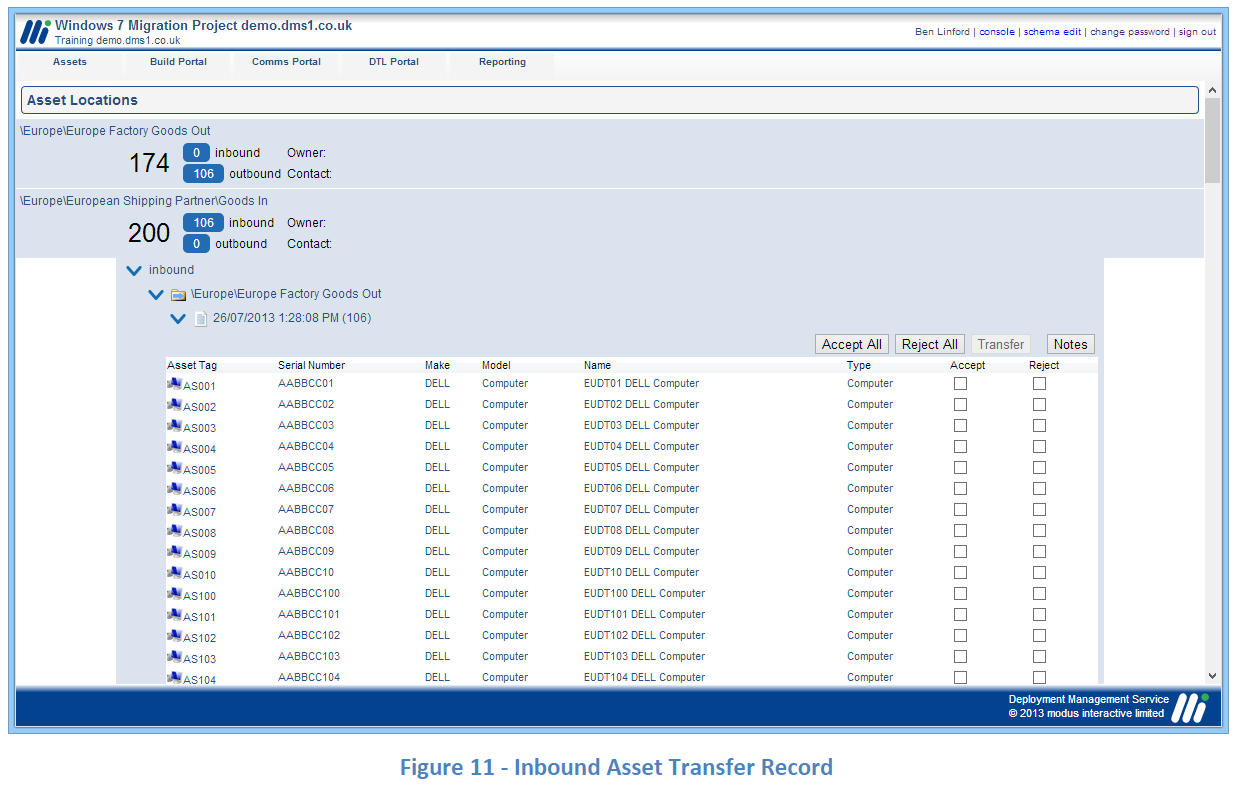
- Select the relevant ATR which will then display a list of the assets in this transfer as shown in Figure 11 below.
- Computers in the transfer can now be accepted or rejected. This can be done individually or using the ‘All’ buttons.
Outbound Asset Transfer
To send assets to another location you need to create an Asset Transfer Record. To initiate an outbound asset transfer to another asset location:
- Click on Inventory in your current location as shown in Figure 12
- Computers can be selected either using the tick box next to each item or using the Select Assets button. Pressing this button reveals an input field where comma separated values can be typed in or pasted from another file. The values input can be Asset Tag, Serial Number or Computer Name. This is similar to the Select Asset feature available within the DMS Console.
- Once entered hit the Select Assets button again and the corresponding assets will be ticked.
- From here you can select which computers you are going to transfer and then click on the Send button. This will show a list of available destinations that can receive computers from the source location.
- Once a destination is selected a confirmation dialogue will then appear confirming that you wish to transfer the computers, and accepting this dialogue generates the Asset Transfer Record.