
Table of Contents
The Assignments Portal
Typically at the stage of building new computer assets the new computers need to be assigned to users/deployments as this then makes the rest of the delivery process more efficient. To manage this the Assignments Portal allows engineers to pick hardware located at a build location (whether central or local) and assign it to the relevant deployments within the Schedule Groups.
As with the other Admin Portals the Assignments Portal is supported in the latest versions of Internet Explorer and Google Chrome.
Navigating the Assignments Portal
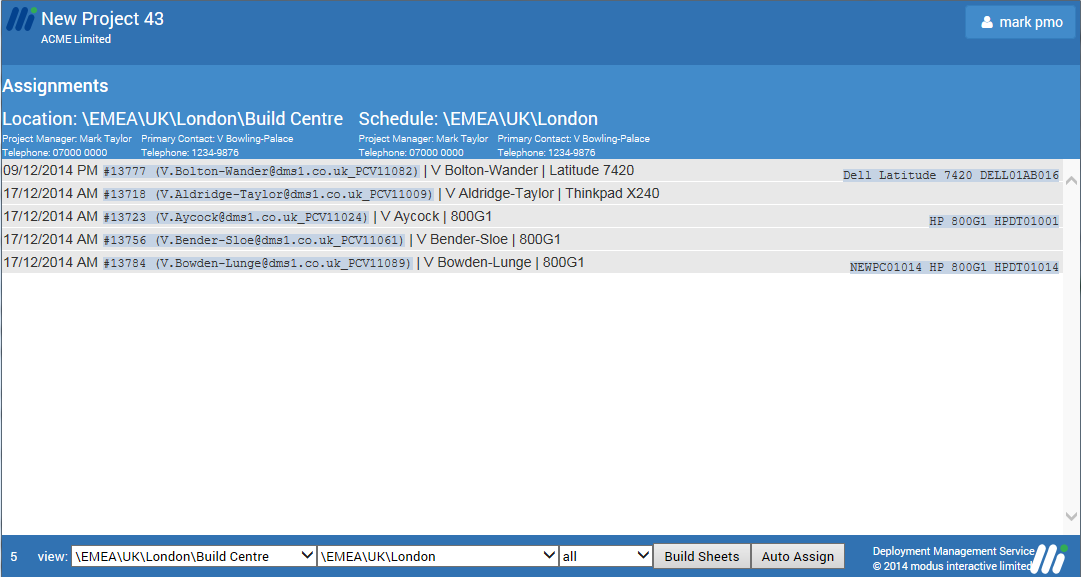
The header bar of the Assignments Portal shows information about the Location and the Schedule. The Location is the selected Asset location that you wish to assignment assets from which is selectable in the first drop down list in the footer. An asset location must be of the type Global to appear in this list. The Schedule refers to the deployments that you can assign assets to. The second drop down list in the footer allows you to select any Schedule Group (that you have permission to) or point in the structure in order to select which deployments are shown. You can further filter the list with the final drop down list which allows you to switch between only deployments that are unassigned or not, and select all deployments or pick a specific date.
With a Schedule of deployments listed in the main pane you can also use the Build Sheets button to download and all the build sheets for the deployments listed.
Assigning Hardware to Deployments
To assign a new asset to a deployment:
- First ensure you have the correct Location and Schedule selected
- Locate the deployments
- Click on it to select it and reveal the 3 buttons: Assign Notes and Build Sheet
- Click on the Assign button
- You can now search for an asset from the selected Global Asset Location
- You can use the serial number, asset tag, computer name or any part of these values to search for a specific asset or just click on Go with no value and it will return all the unassigned assets that match the model required
- Once the computer is selected press OK and the assignment is complete.
Once a new asset is assigned you can select the deployment again to:
- Unassign the new asset
- Edit the computer name
- Add a Note
- Print the Build Sheet
Auto Assign
Rather than assigning new assets individually you can make use of the Auto Assign button. Like the Build Sheet button this will work for all deployments listed in the Assignment Portals, therefore always make sure you have precisely the deployments you want listed before using the button.
Using the button will automatically assign the next available asset of the correct model type to each of the deployments without assets assigned.
Unassigning Hardware from Deployments
If deployments already have new assets assigned you will see the details of the new asset on the right hand side of the page (see above).
If for some reason the hardware needs to be unassigned the reverse of assign process can be used, however this has to occur whilst the hardware is still in the Global Asset Location it was in when assigned. Once the hardware has been transferred out of the location you will see the hardware listed on the right of the Deployments updated with a black arrow.


