
Table of Contents
Assets Portal
The Assets Portal has been designed for those users who need to participate in managing assets but do not have access to the DMS Console. Like other Portals access is granted using the Menus tab of the Admin properties window. Once a user has been granted access to the Assets Portal it will appear in the menu list in the top right of the DMS Web Portal, and as with all Admin portal interfaces it is supported on the latest versions of Microsoft Internet Explorer and Google Chrome.
In addition to being granted access to the Assets Portal and Admin user must also be given Send to and/or Receive from rights for each Asset Location they are managing. This is done in the Assets tab of the Admin user properties window.
Navigating the Assets Portal
The Asset Locations that are listed in this portal directly correspond to the ones you have been granted access to in the Asset Locations tab of the User Properties. You must also have read write security permissions to the Asset Locations within the project structure in order to carry out any asset transfers.
If you are looking for a particular asset you can use the powerful search field in the portal footer. Enter any part of the serial number, name or asset tag to search for an asset in any of the locations you have permission to.
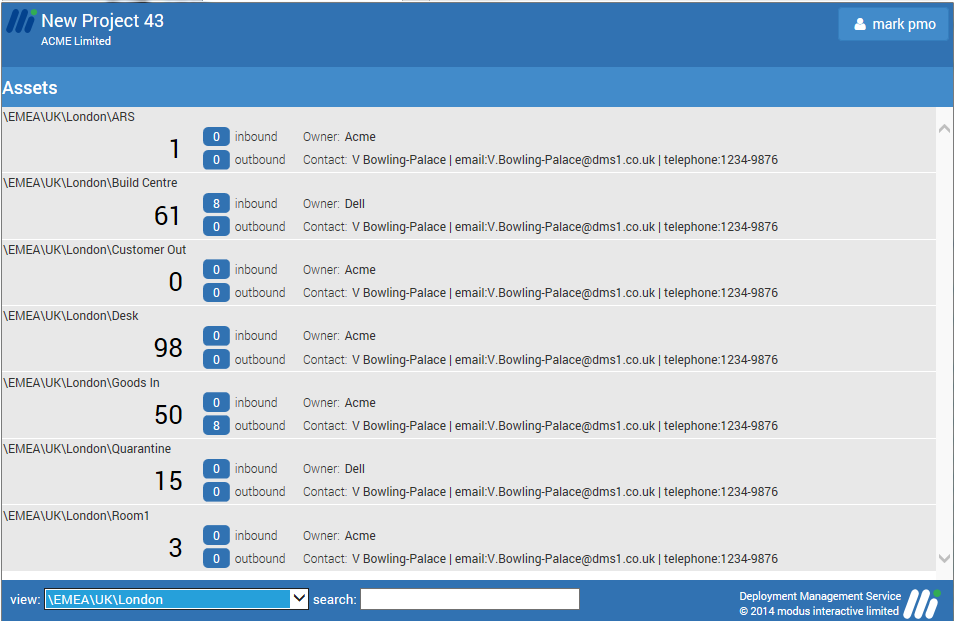
When you mouse over an Asset Location the background will change to light blue and the row will have a yellow outline to show it is selected. Clicking on the Asset Location will reveal the options available:
- Inbound
- Outbound
- Inventory
Sending Assets
To send assets to another location you need to create an Asset Transfer Record. To initiate an outbound asset transfer to another asset location:
- Click on inventory> in your current location as shown below
- Computers can be selected either using the tick box next to each item or using the Select Assets button. Pressing this button reveals an input field where comma separated values can be typed in or pasted from another file. The values input can be Asset Tag, Serial Number or Computer Name. This is similar to the Select Asset feature available within the DMS Console.
- If you using the button click it again once you have entered the values and the records will be selected.
- Now click on the Send button to reveal a list of authorised routes where you have permission to send to.
- Once a destination is selected a confirmation dialogue will then appear confirming that you wish to transfer the computers, and accepting this dialogue generates the Asset Transfer Record.
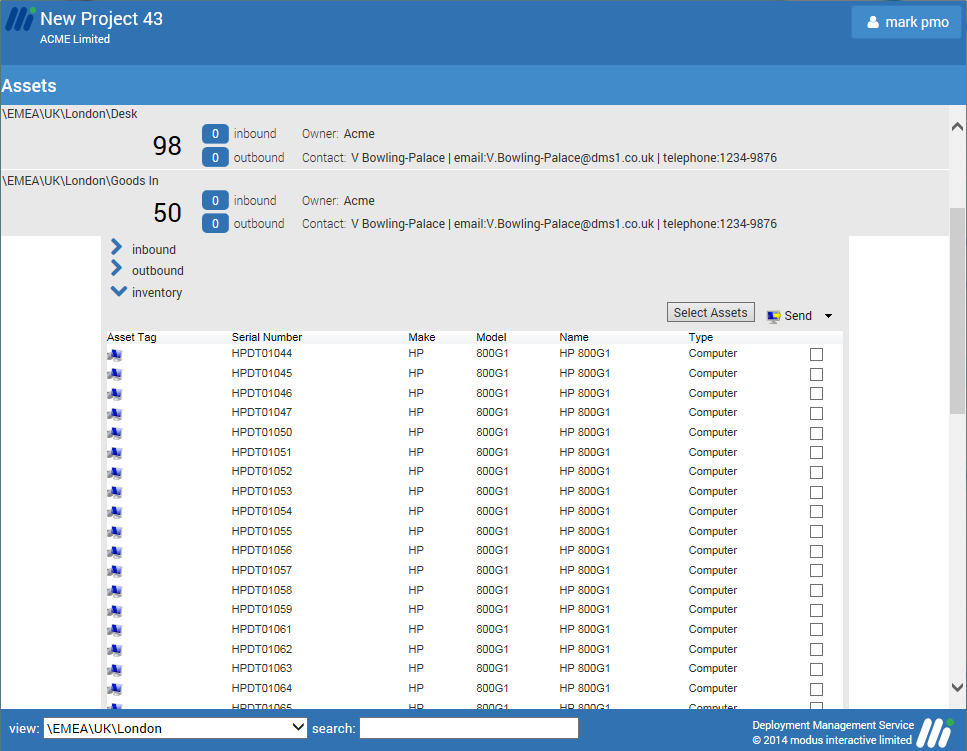
You will now see that the outbound number for the location will show the corresponding number you have just sent or add the number to any current outbound assets.
If you want to check on an outbound asset transfer you can select outbound from the selected Asset Location. This will show a list of possible outbound locations and by selecting the appropriate location you will see a list of any outstanding outbound asset transfers. If required you can click on the asset transfer to reveal the list of assets in the transfer with an option to add a 'Note' and if you have permission you can even complete the asset transfer from here.
Receiving Assets
To receive assets into an asset location that you manage:
- Select the Asset Location..
- Click on Inbound to display a list of the locations that assets can be sent from.
- Select the location the transfer is coming from to see a list of possible asset transfer records (ATR).
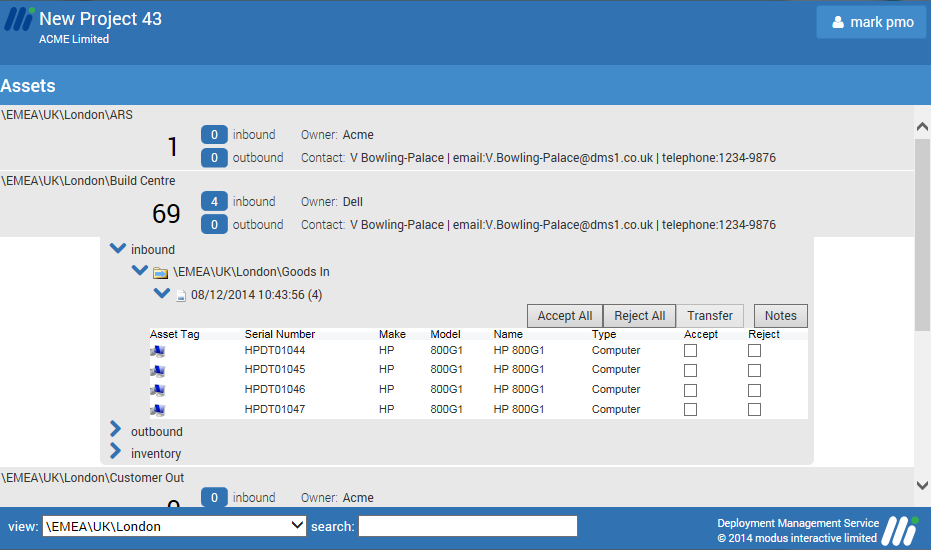
- Select the relevant ATR which will then display a list of the assets in this transfer as shown below.
- Computers in the transfer can now be accepted or rejected. This can be done individually or using the ‘All’ buttons. You can also view any Notes or add another Note to this transfer.
Searching for Assets
To find an asset using the search facility start type the asset you are searching for in the search box. The more characters entered (minimum two) will show you a list of matching assets. Clicking on the asset will open the relevant Asset Location and highlight the given asset. Note users have to have permission to the asset location in order to be able to find it. Searchable attributes include Name, Asset tag, Serial number, Make, Model, Tags and custom attributes.


