
Table of Contents
Introduction
This is a DMS How To document and details how to setup an administrator account to be used by a Deployment Team Leader (DTL). A DTL is the person responsible for the team of engineers carrying out the deployments, and a web portal interface is provided to assist them in the role.
It is assumed the reader has knowledge of DMS and in particular how to use the DMS Console and Setup.
Setup
Load the DMS Console Setup and go to the Administrator tab.
General
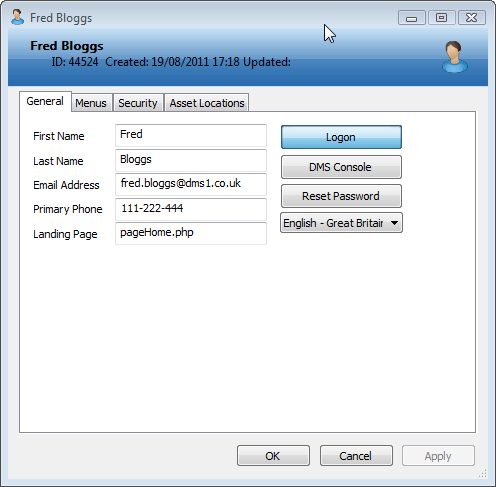
To enable or disable logon use the Logon button.
Do not click on the DMS Console button as a DTL does not require access to the Console.
Use the Reset Password button to set the user’s initial password
Set the default language for the user.
Menus
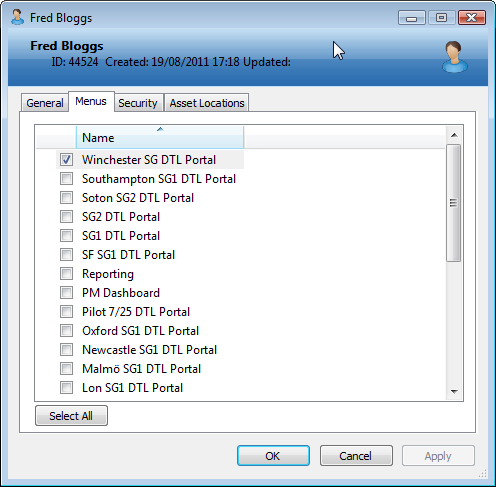
Use the Menus tab to select which Schedule Group DTL Portals the user will need access to.
Security
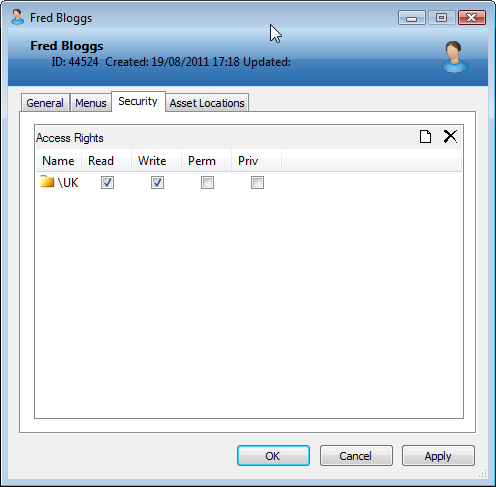
Allocate the user Access Rights to the areas of the structure that the DTL will be working in.
The Access Rights are inherited so they can be set at whatever level you think necessary.
In our example we have given the user rights to the UK OU as the DTL will be working at various locations in the UK.
Asset Locations
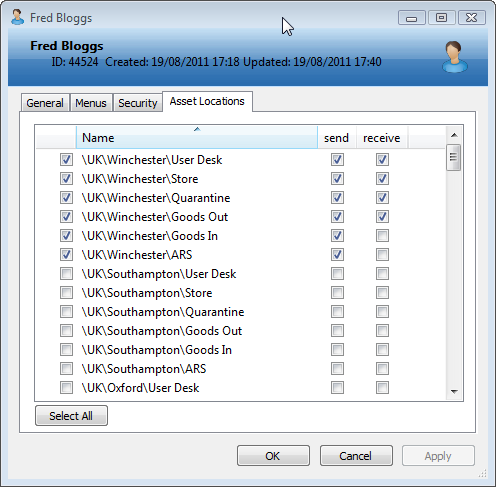
As part of the DTL role the user will be moving Assets in DMS, automatically and manually.
The automatic movements are defined in Setup\Schedule Group properties \Schedule Group Routes. In our example Store, User Desk and Quarantine are asset locations in the automatic routes.
The DTL in our example is also responsible for manually transferring computers from Goods In to Store, Quarantine to ARS, and Goods Out to a location not shown. The appropriate Send (from) and Receive (in) boxes have been set.
If the above process is followed a DTL will be able to logon to the DMS web portal and they will have a menu item for each DTL Portal they have been given access to. They can then select the appropriate menu item and use the DTL Portal to carry out their role.


