Table of Contents
Introduction
Asset Tracking in DMS ensures that the location of new and legacy computers can be recorded and used to assist chain of custody. New assets can be imported into DMS from factory export data and subsequently transferred through the project structure to their destination using Asset Transfers within the DMS interfaces. Likewise legacy computers can be imported into a relevant container in the structure from customer data and then transferred through to their final destination whether it be reuse/recycle or asset disposal.
Asset Tracking Interfaces
Asset tracking can be accessed through the DMS Console or via the Assets Portal in the DMS Web Console. Whether accessed via the Console or Assets Portal Admin users will only see Asset Locations they have permissions for.
In the Assets Portal each Asset Location in the list displays the total of the current stock of computers along with any total that are classified as inbound or outbound to the location. The location’s owner name and contact are also displayed. Opening the location then displays the list of stock computers along with the ability to send and receive asset transfers and interrogate current and historic transfer records. Selecting large quantities is made more efficient by support for CSV input or input direct from a bar code scanner.
Once an Asset Location is added to the DMS Console home screen the location can be opened and the same set of operation can be carried out as in the Assets Portal.
How do I setup Asset Tracking?
Asset Tracking is a DMS option which must be requested when the DMS instance is requested as it is a global system setting. With the option activated, the setup and configuration of Asset Tracking within DMS is done from the DMS Console Setup interface.
Asset location OUs sit within the project structure and should wherever possible represent physical and not logical locations, for example ‘Secure storage’ would be okay where as ‘London’ should be discouraged.
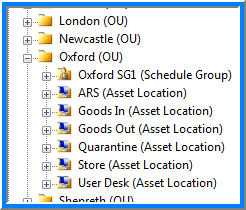
In this example Oxford is the site and the OU itself is for management purposes, whilst beneath you have one Schedule Group for the migrations at this site along with the asset locations at the site.
Asset Location Types
The General OU properties of the structure are inherited by Asset Location OUs, however they have the additional setting of defining what type of Asset Location it is, which is done from the Asset Location tab in the Asset Location OU properties. The default setting is Normal however two additional options are available:
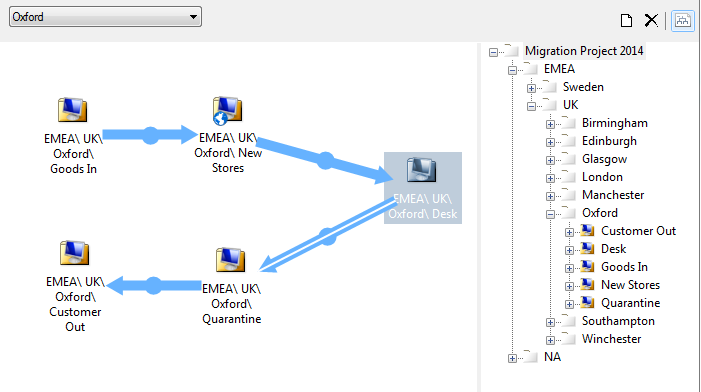
Global is used to configure an Asset Location to be available as a a location from where new computers can be assigned to deployment records, either in the Console or the Assignments Portal. In the Asset Tranfer Route for Oxford below there is a Global Asset Location denoted by the blue globe within the image icon for New Stores.
Deployment used to configure an Asset Location to be a location where deployments will be carried out. Which is to say where new assets will end up after a successful deployment (if applicable) and from where legacy assets will be moved from after a successful deployment (if applicable).
This must also be set in the properties of any corresponding Schedule Groups.
Asset Transfer Routes
In order for assets to move between locations Asset Transfer Routes must be configured. This allows strict control of which locations assets can move between within the project structure. These routes are configured using DMS Console Setup in the Asset Transfer tab.
Creating the routes is a simple process of creating a new one and then dragging the locations into the transfer and then connecting the locations where appropriate. Only OUs configured as Asset Location can be used.
This figure below shows the Asset Transfer route configuration created for the equipment within the Oxford site. How equipment arrives at Goods IN and leaves through Customer Out is controlled from another Asset Transfer route. The white line through the route from Desk to Quarantine denotes that this has been set in the properties of the route as the default.
Access Permissions and Security
In order for an Admin user of DMS to participate in any form of asset management they must first either be given access to the Console or to the menu option for the Assets Portal.
Secondly they must be permitted access to specific asset locations and to the function of send from or receive into the location(s). This is done from the Assets tab of the Admin properties.
Finally unless the Admin user is just viewing assets they will need permissions to the structure where the asset locations are situated.
How do assets move between locations?
New assets enter the system using an import in the DMS Console. Typically you will have an OU Asset Location which will represent your factory Goods Out location and the new assets will start their lifecycle imported into this container.
Legacy assets will enter the system using an import in the DMS Console. This data will usually be provided by the customer and will be imported to an OU Asset Location.
There are two types of asset transfer in DMS, manual and automatic. The majority of transfer processes are manual however the final deployment process includes automatic transfers.
Manual
Manual transfers can be done either using the DMS Console or using the Asset Portal. The Asset Portal is a browser interface provided for those team members who need to do transfers but are not permitted access to the DMS Console, for example engineers or customer personnel.
Automatic
The automatic transfers are carried out when deployments are succeeded in the Deployments Portal. This means the engineers do not need to worry about the additional steps of asset tracking at the point of deployment. The new asset will need to be in a valid Global Asset Location and the legacy asset must be the correct Deployment Asset Location as defined within the deployment record and the legacy asset will be transferred down the default route from the Deployment Asset Location.
DMS will check to ensure the new and legacy assets are in the correct asset location for this to occur and if not the deployment will not be allowed to be succeeded in the portal. DMS will also check the engineer has the correct permissions to the asset locations and not allow the deployment if they do not.
Audit trail and reporting
Whether using the Asset Tracking component of the Console or the Asset Portal, each Asset Transfer Record (ATR) can be interrogated (subject to permissions). These ATRs show the source and destination locations along with the date and time stamp and users who performed the transactions. The assets are listed with details (whichever have been input or imported) of asset tag, serial number, make, model, name and type, along with whether they were accepted or rejected in the transaction.
Within the Console the search feature can be used to locate any computer and within the computer properties window the Transfers tab lists the date and time of each transfer, and where it was from and to.
The reporting portal has a number of reports relating to asset tracking including:
- a report to check route details and ownership
- a stock report showing total, inbound and outbound numbers for a given part of the project structure
- a stock report showing actual asset information and their status for a given part of the project structure
- a stock report showing new computers by model for any given part of the project structure